User guide
From download to your first document in ten minutes
Everything you need to install, activate and use PDF Studio day to day — then the notes your IT department needs to roll it out across many machines.
Install
- Download the installer from the download page. It needs 64-bit Windows 10 or 11; ARM PCs need Windows 11.
-
Check the file before you run it — especially if you will hand it to other machines. The result must match the checksum on the download page:
certutil -hashfile PDF-Studio-Setup-1.3.0-x64.exe SHA256
- Run the installer and follow the steps. It installs for every user on the PC and adds a “PDF Studio by ElixTechs” shortcut to the desktop and the Start menu.
Activate
When you buy, or ask for a trial, you are sent a licence key — a .pdfkey file, or text that starts with PDFS1.
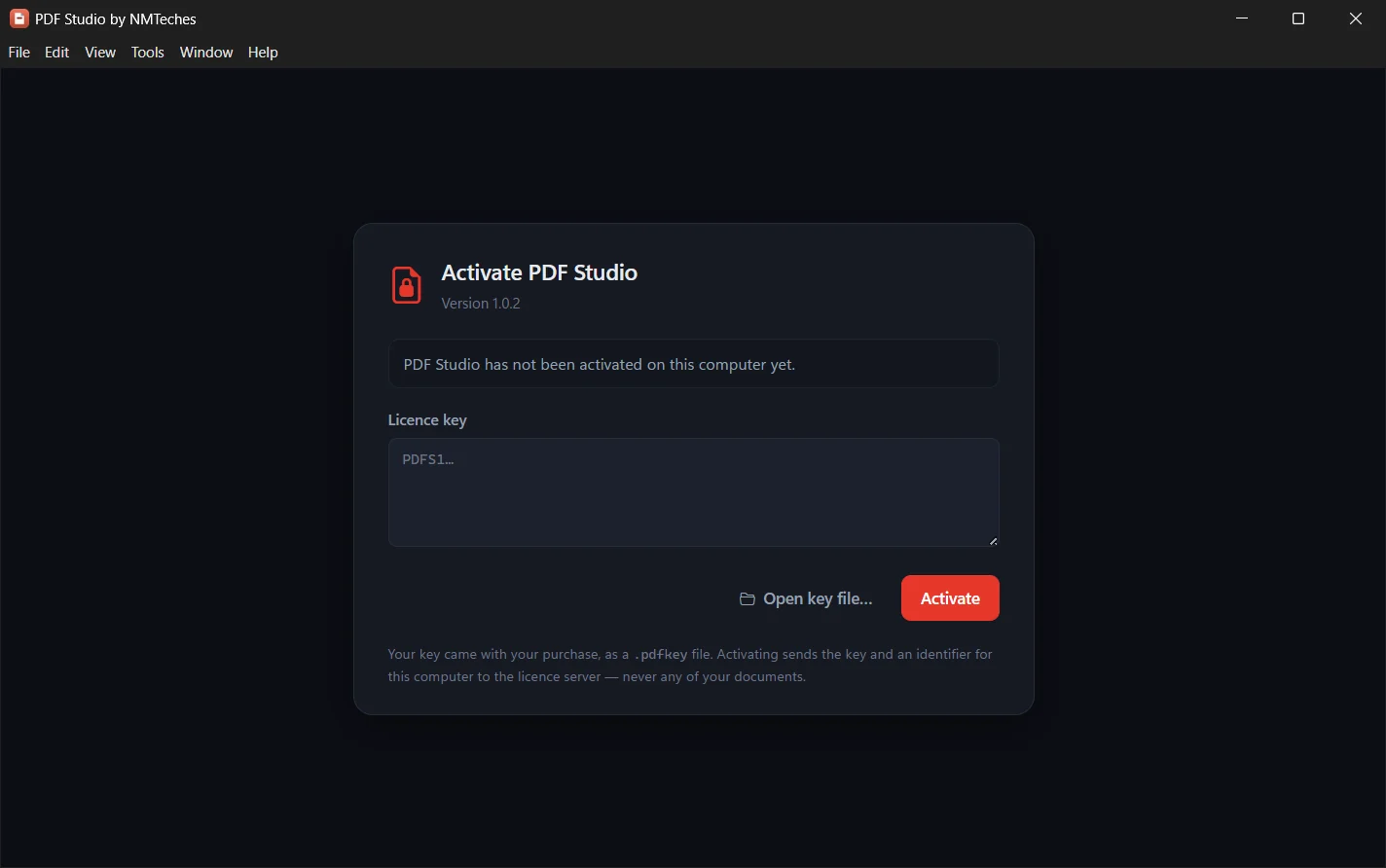
- Open the app. If it is not activated yet, the activation screen appears straight away.
- Choose “Open key file”, or paste the key, then “Activate”.
- The app contacts the licence server to register this PC. After that it works offline, and quietly renews its registration in the background whenever a network is available — it needs to connect at least once every 30 days.
Find your way around
The first launch offers a short tour. Replay it any time from Help ▸ Replay the Welcome Tour.
- The sidebar: All tools, Edit PDF, Signatures, Viewer, History and Settings.
- The menu bar: File, Edit, View, Tools, Window and Help — and every tool is also in the Tools menu.
- Tabs: each open document has its own tab, and each tab remembers the tool you were using.
Useful shortcuts: Ctrl+O open · Ctrl+T all tools · Ctrl+E edit · Ctrl+W close tab · F1 this guide
Use a tool
Every tool works the same way. For example, merging several files into one:
- Open All tools and choose Merge PDF — or from the menu: Tools ▸ Organize ▸ Merge PDF.
- Add the files and drag them into order.
- Press Merge. A new file is written; your originals are never modified.
Edit and sign
Edit PDF (Ctrl+E) shows the pages and lets you work on top of them: add text, fill form fields in place, drop in an image, a mark or a shape, draw freehand, and stamp the date.
- Text you add picks up the document’s own font and size, so it looks like it belongs.
- Save your signature once under Signatures — drawn, typed or photographed — and use it in any document.
- For a certificate-based digital signature, use Tools ▸ Security ▸ Sign Digitally.
Scanned documents
OCR PDF makes a scanned document searchable and copyable, and detects the language of the pages automatically. Clean Up Scan straightens, de-speckles and brightens the pages first.
AI on your PC
Summarise, Ask this PDF, Translate and Extract details run a language model on the PC itself — the document is never sent anywhere.
- Open Settings ▸ AI assistant and choose Install the assistant (about 52 MB).
- Choose an AI pack — the Balanced pack is recommended for Arabic and English (2.3 GB, downloaded once).
- Open a document, choose Ask this PDF, and type your question. Each answer points to the page it came from.
Arabic
Arabic works in every tool and is detected automatically: shaping, joining and direction in added text, watermarks and page numbers; search that finds the plain spelling; and conversion to and from Word that keeps the fonts. Arabic fonts are bundled, and Arabic OCR needs the Tesseract OCR add-on (step 6). The application interface itself is in English.
For IT
-
Silent install, with the key applied machine-wide:
PDF-Studio-Setup-1.3.0-x64.exe /S /LICENSE=PDFS1...
- The MSI:
msiexec /i PDF-Studio-1.3.0-x64.msi /qn, with the key deployed to%ProgramData%\PDF Studio\license.key. - Each activated PC takes one seat. Reinstalling Windows or renaming a PC makes it a new one, and a retired PC’s seat can be freed.
- A PC only needs occasional HTTPS access to the licence server:
pdfstudio-licence.elixtechs.com(1.2.0 and earlier:pdfstudio-licence.nmteches.com) - For isolated networks: offline activation (see step 2).
- Every detail — Intune, Group Policy, Configuration Manager, network and security — is in the deployment guide.
When something is wrong
- Settings ▸ PDF engine ▸ View log shows the PDF engine’s latest messages — copy them when reporting a tool error.
- Help ▸ About shows the version, organisation and licence serial.
- Every message the app shows, and what it means, is in Troubleshooting; quick answers are in the FAQ.
Ready to start?
Download the app, or ask for a trial key.